Sending Emails
neomd sends every email as multipart/alternative:
text/plain— the raw Markdown you wrote (readable as-is in any client)text/html— rendered by goldmark with a clean CSS wrapper
This means recipients using Gmail, Apple Mail, Outlook, etc. see properly formatted links, bold, headers, inline code, and code blocks — while you write nothing but Markdown.
When attachments are present the MIME structure is upgraded automatically:
- Images →
multipart/relatedwithContent-ID— displayed inline in the email body - Other files (PDF, zip, …) →
multipart/mixed— shown as downloadable attachments
Multiple From Addresses
Add [[senders]] blocks to config to define extra identities that share an existing account’s SMTP credentials:
[[senders]]
name    = "Work alias"
from    = "info@example.com"
account = "Personal"   # must match the name = field of an [[accounts]] block
In compose and pre-send, press ctrl+f to cycle through all configured accounts followed by all senders. The displayed From: field updates live. Sent copies always go to the active account’s Sent folder regardless of which From is selected.
CC, BCC, Reply-all, and Forward
In the compose form, ctrl+b toggles the Cc and Bcc fields (hidden by default). Bcc recipients receive the email but are never written to message headers. From the reader, r replies to the sender and R replies to the sender plus all Cc recipients (your own address excluded, Reply-To respected).
All replies include proper In-Reply-To and References headers for email threading, ensuring they appear in conversation threads in Gmail, Outlook, and Apple Mail.
Press f to forward an email — works from both the reader and the inbox list (the body is fetched automatically). The editor opens with the original message quoted and Fwd: prepended to the subject. Fill in the # [neomd: to: ] field and add your own text above the quoted block.
Emoji Reactions
Press ctrl+e from the inbox or reader view to react to an email with a single emoji — a fast, lightweight way to acknowledge receipt without writing a full reply.
Available reactions:
- 👍 Thumbs up
- ❤️ Love
- 😂 Laugh
- 🎉 Celebrate
- 🙏 Thanks
- 💯 Perfect
- 👀 Eyes
- ✅ Check
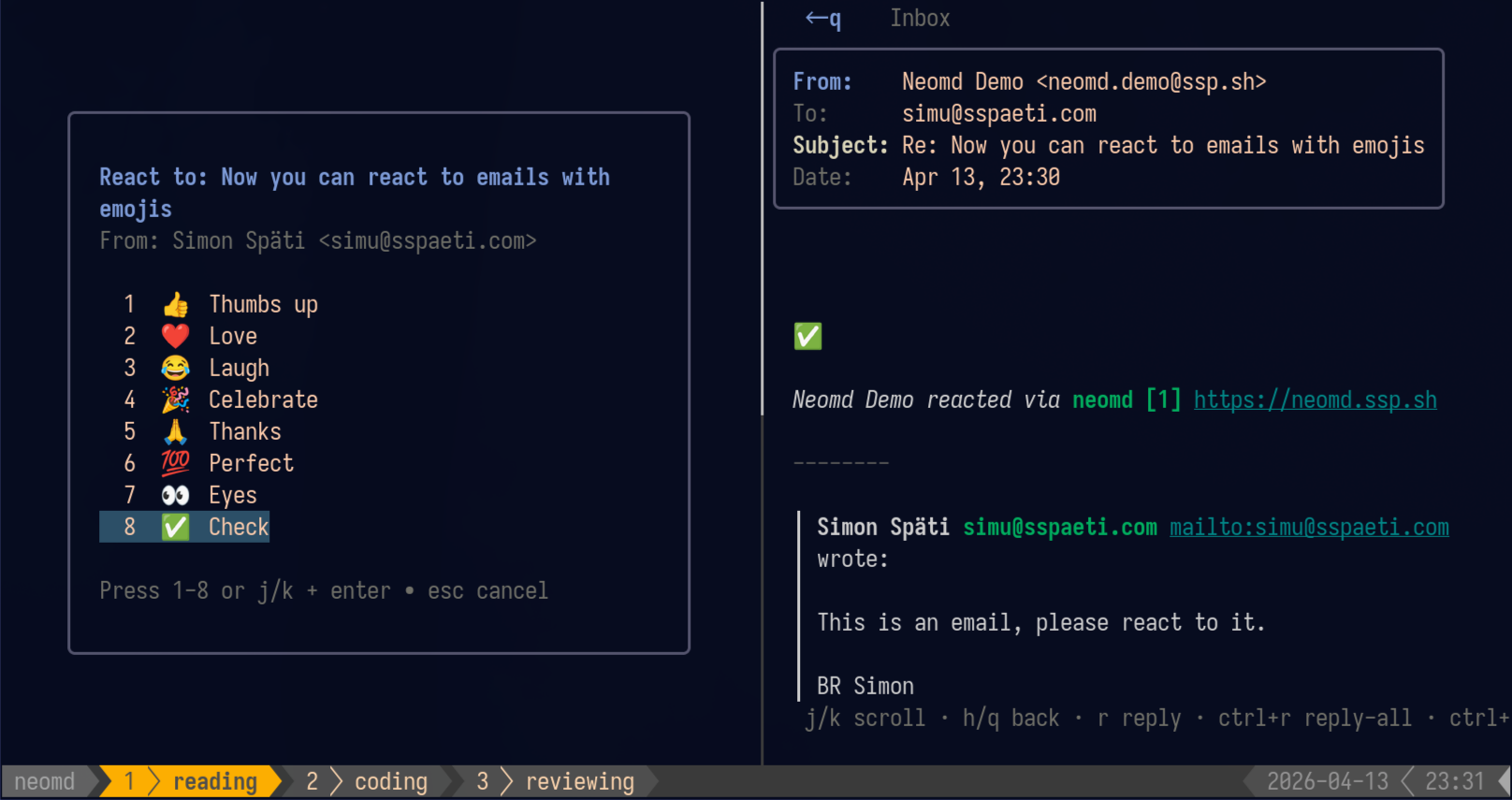
How it works:
- Press
ctrl+ewhile viewing or selecting an email - Choose an emoji by pressing
1-8(instant send) or navigate withj/kand pressenter - Press
escto cancel
The reaction is sent immediately (no editor, no pre-send review) as a properly formatted email with:
Plain text:
👍

Simon Späti reacted via [neomd](https://neomd.ssp.sh)

---

> **John Doe** wrote:
>
> original email body quoted here

---
HTML: The emoji is displayed at 48px with a styled footer containing your name and a link to neomd. The original message is quoted below in a styled blockquote.
Threading:
Reactions include proper In-Reply-To and References headers so they appear in the conversation thread (tested with Gmail, Outlook, and Apple Mail). The original email is marked with the \Answered flag.
From address: The reaction is automatically sent from the address that received the original email (same logic as regular replies). A copy is saved to your Sent folder.
Emoji reactions are perfect for quick acknowledgments, celebrating good news, or thanking someone without the overhead of composing a full reply.
Attachments
Attachments are tightly integrated with both the pre-send screen and neovim.
From the pre-send screen — press a to open yazi (auto-detected; override with $NEOMD_FILE_PICKER). Press D to remove the last attachment.
From within neovim — press <leader>a in any neomd-*.md buffer to open yazi in a floating terminal. Selected files are inserted at the cursor as visible [attach] /path/to/file lines.
neomd strips [attach] lines before sending:
- Image files (
.png,.jpg,.gif,.webp,.svg) → embedded inline in the HTML body; recipients see the image at that position - Other files → appended as a regular MIME attachment
Here is a screenshot:
[attach] /home/you/screenshots/overview.png

And a PDF for reference:
[attach] /home/you/docs/report.pdf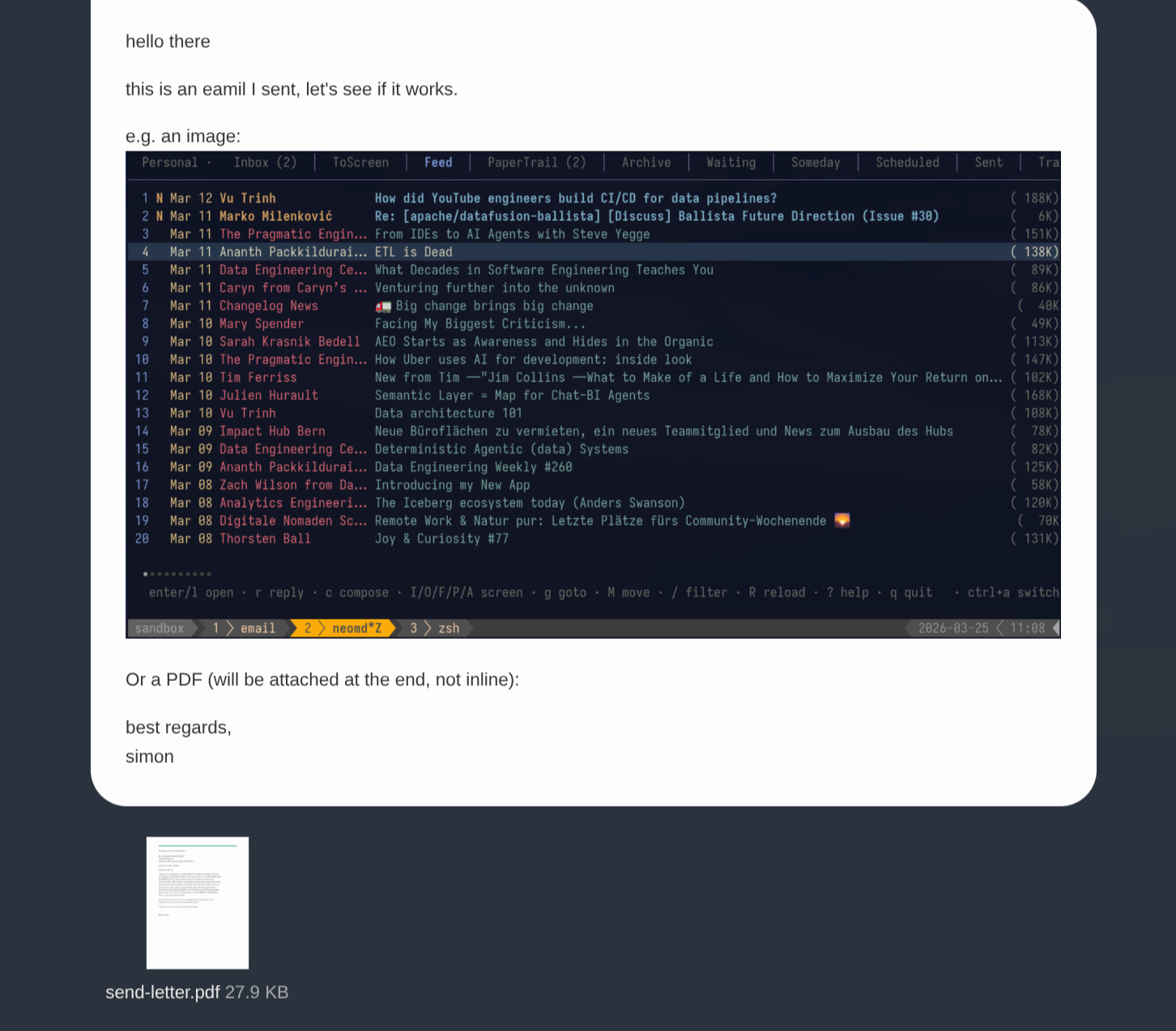
Pre-send Review
After saving and closing the editor, neomd shows a review screen before sending — add or remove attachments, save to Drafts, or re-open the editor without sending accidentally.
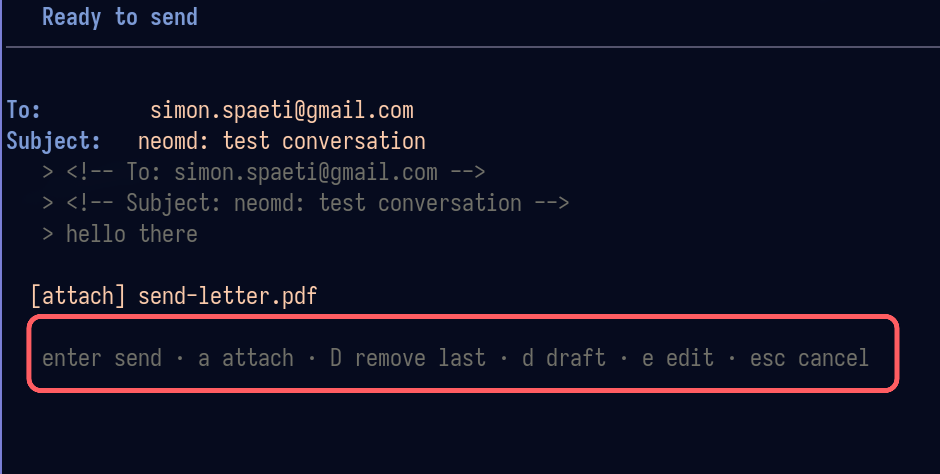
| Key | Action |
|---|---|
enter | send |
p | preview in $BROWSER — renders through the same pipeline as sending, with inline images visible |
a | attach file via yazi |
D | remove last attachment |
d | save to Drafts (IMAP APPEND with \Draft flag) |
e | re-open editor |
esc | cancel |
Press p to see exactly what the recipient will see — the email is rendered through the same goldmark Markdown-to-HTML pipeline used for sending. Local image paths from [attach] lines are converted to file:// URLs so the browser displays them inline.
Drafts
Press d in the pre-send screen to save to Drafts instead of sending. Navigate to Drafts with gd. To resume a saved draft, open it and press E — it re-opens in the editor with all fields pre-filled, and saving goes through the normal pre-send review.
Note: Drafts are stored as plain text only (not multipart/alternative) to preserve markdown formatting when reopening. This prevents formatting corruption like line break addition, pipe escaping, and italic style changes.
HTML Signatures
neomd supports dual-format signatures for professional email layouts with logos, tables, and styled text.
Configure separate text and HTML signatures in [ui.signature_block]:
[ui.signature_block]
  text = """[html-signature]"""

  html = """<table style="font-size: 14px; color: #333;">
  <tr>
    <td><img src="https://example.com/logo.png" width="80"></td>
    <td>
      <strong>Your Name</strong><br>
      Your Title, Company Name
    </td>
  </tr>
</table>"""
How it works:
- The text signature appears in the editor and in the
text/plainMIME part - The HTML signature is appended to the
text/htmlMIME part only - Recipients using HTML email clients see the styled HTML signature
- Recipients using plain text clients see the text signature
The [html-signature] placeholder:
Include [html-signature] in your text signature (as shown above) to control HTML signature inclusion on a per-email basis:
- The placeholder is visible in the editor and pre-send preview
- When you send, neomd strips the placeholder and appends the HTML signature to the HTML part
- Delete the placeholder in the editor to send without the HTML signature for that specific email
This gives you full control: professional HTML signatures by default, plain signatures when needed.
Best practices:
- Use inline styles only (no
<style>blocks) for maximum email client compatibility - Host images externally (
https://example.com/logo.png) so they display for recipients - Test your HTML signature by sending to yourself first
- The
--separator is added automatically before the text signature
For full HTML signature configuration examples, see Configuration Reference.
For reading emails — images, links, attachments, and navigation — see Reading Emails.